

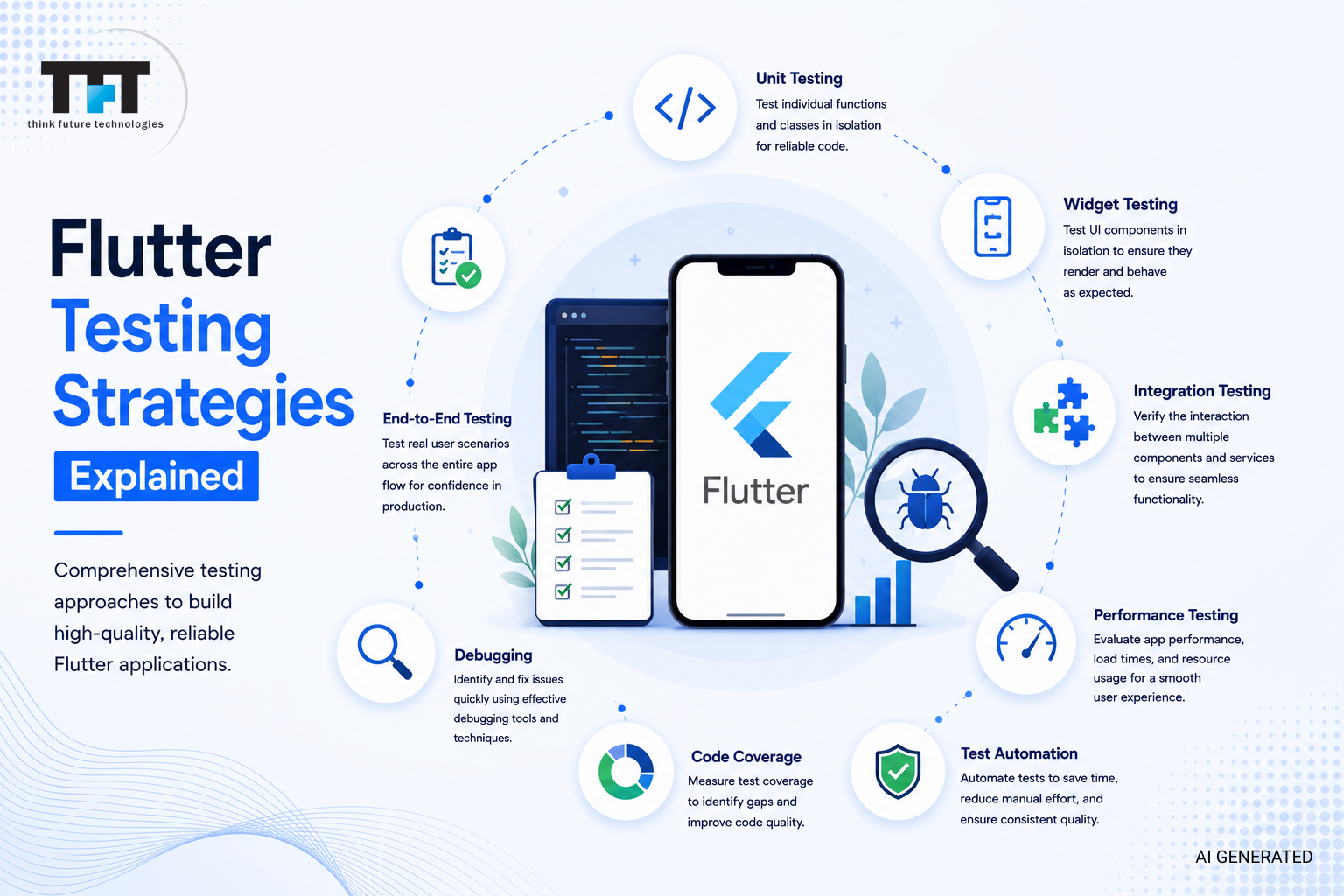
Flutter’s cross-platform nature makes structured testing more consequential than in native development. A flutter app deployed to four platforms shares one test suite — which is a leverage multiplier when the tests are good and a liability when they’re not. A bug in a shared widget or business logic layer doesn’t affect one platform — it breaks Android, iOS, web, and desktop simultaneously. One undetected regression ships to four surfaces at once.
This guide explains the flutter testing strategies explained model that production teams actually use in 2026: the 4-layer pyramid, what integration tests literally cannot do, how to choose between Patrol, Appium, and Maestro, and how to wire automated testing into a CI pipeline without burning through a macOS runner budget.
You can still test manually for exploratory UX checks and regression testing of critical flows before major releases — but manual testing alone slows releases and allows regressions to slip through. Automated testing provides immediate feedback and scales with your codebase in a way that manual testing cannot.
Last updated: May 2026. Maintained by the engineering team. Pricing references are sourced from GitHub Actions and Firebase Test Lab public pricing documentation as of the update date — verify current rates before final budget projections. Reference: Flutter testing documentation.
Quick start: Run flutter test in your project root right now. Whatever output you get — whether it’s “No tests found,” 12 passing, or a wall of red — that’s your baseline. This guide builds from wherever you are toward a production-ready testing strategy.
The 4-Layer Testing Pyramid (Not 3)
Every existing guide teaches three layers. Production Flutter apps need four. The missing layer — E2E — is where shipped apps fail after passing all their integration tests.
The recommended allocation:
| Layer | Allocation | Tool | Runs on |
| Unit tests | 60% | test package | Any machine, no device |
| Widget tests | 25% | flutter_test | Simulated environment |
| Integration tests | 10% | integration_test | Real device / emulator |
| E2E tests | 5% | Patrol / Appium / Maestro | Real device only |
Why E2E is a separate layer from integration tests. Flutter’s integration_test package runs inside the Flutter engine. It can tap buttons, navigate screens, and verify state — but it cannot cross the native OS boundary. Permission dialogs, biometric prompts, Apple Pay / Google Pay sheets, WebView interactions, and deep links triggered from other apps are all outside the Flutter engine. integration_test cannot touch any of them. Discovering this gap after launch typically costs a US engineering team 1–3 sprint hotfix cycles ($10,000–$30,000 in fully-loaded eng cost).
flutter_driver is deprecated. Teams still building integration tests on flutter_driver are accumulating dead-end technical debt. The official migration path is integration_test. If your codebase still imports package:flutter_driver, migrate before extending that test suite.
Pyramid Ratios in Practice: Allocating Your Test Budget
The 60 / 25 / 10 / 5 split is not arbitrary — it reflects the cost and maintenance overhead at each layer.
Unit tests are fast (milliseconds), run anywhere, and require no devices. They are cheap to write and nearly zero-cost to maintain if your app’s logic is well-modularized. 60% of tests should be unit tests: business logic, data models, utility functions, state reducers.
Widget tests are medium-speed (seconds), run in a simulated environment, and don’t require a physical device or emulator. They verify that a single widget’s UI looks and behaves as expected by simulating user interactions and events within a simplified test environment. Aim for 25% of your suite.
Integration tests run on real devices or emulators, which makes them slow and sensitive to device state. Integration testing offers the highest level of confidence for same-process flows, catching platform-specific issues that widget tests can’t simulate — but their maintenance cost per test is much higher than unit or widget tests. Keep them to 10% and focus on your highest-risk user journeys.
E2E tests (the native layer) are the most expensive to write, run slowest, and break most often. Reserve them for the flows that literally require native OS interaction: login with Face ID, location permission grant, purchase via Apple Pay. Aim for 5%.
What over-indexing on integration tests costs. A common pattern in Flutter teams is building too many integration_test flows and skipping E2E entirely. This gives false confidence: your tests pass, but the app fails on the real device when a permission dialog appears. Standard scalable testing strategy often follows a 60-25-15 split for unit, widget, and integration tests across most guides — the 4-layer model simply adds the E2E layer explicitly and rebalances accordingly.
Unit Testing in Flutter: Building the Foundation
Unit tests in Flutter are designed to test individual functions, methods, or classes in isolation, ensuring that small pieces of code behave as expected under various conditions. They use Dart’s test package and focus on the app’s logic, not UI.
Catching bugs during the local build phase is cheaper than fixing them after a production release. A unit test that catches a null dereference in a data model takes 2 minutes to write and 8 milliseconds to run. The same bug found in production requires triage, a hotfix branch, review, CI run, and app store resubmission.
A Counter Class Example
import ‘package:test/test.dart’;
class Counter {
int value = 0;
void increment() => value++;
void decrement() => value–;
}
void main() {
group(‘Counter’, () {
test(‘value starts at 0’, () {
final counter = Counter();
expect(counter.value, 0);
});
test(‘void increment increases value by 1’, () {
final counter = Counter();
counter.increment();
expect(counter.value, 1);
});
test(‘void decrement decreases value by 1’, () {
final counter = Counter();
counter.decrement();
expect(counter.value, -1);
});
});
}
Run this with flutter test test/counter_test.dart. The counter class tests here are trivial — the same pattern applies to any business logic: API response parsing, cart total calculation, validation rules.
Mocking External Dependencies
Mocking external dependencies during testing allows developers to focus on the app’s logic rather than external factors, improving the reliability of tests. Use Mockito (with code generation) or Mocktail (no codegen, better for most teams) to replace HTTP clients, database interfaces, and platform channels.
// Mocktail example — no code generation required
import ‘package:mocktail/mocktail.dart’;
class MockUserRepository extends Mock implements UserRepository {}
void main() {
test(‘returns user when repository succeeds’, () async {
final repo = MockUserRepository();
when(() => repo.getUser(1)).thenAnswer((_) async => User(id: 1, name: ‘Alice’));
final service = UserService(repo);
final user = await service.fetchUser(1);
expect(user.name, ‘Alice’);
});
}
Testing State Management: BLoC vs. Riverpod
The state management library you use has a direct impact on test boilerplate and tool selection.
BLoC with bloc_test. The bloc_test package provides a purpose-built DSL for testing Blocs and Cubits. It’s expressive and reduces boilerplate significantly compared to testing Blocs manually.
import ‘package:bloc_test/bloc_test.dart’;
blocTest<CounterCubit, int>(
’emits [1] when increment is called’,
build: () => CounterCubit(),
act: (cubit) => cubit.increment(),
expect: () => [1],
);
Riverpod with ProviderContainer. When writing unit tests for Riverpod providers, use ProviderContainer directly to override dependencies and read state without building a widget tree.
test(‘userProvider returns user from mock repo’, () async {
final container = ProviderContainer(
overrides: [
userRepositoryProvider.overrideWithValue(MockUserRepository()),
],
);
addTearDown(container.dispose);
final user = await container.read(userProvider(1).future);
expect(user.name, ‘Alice’);
});
For testing state changes over time (the equivalent of blocTest’s expect list), Riverpod requires listening to the provider and capturing emissions manually:
test(‘counterProvider emits 1 after increment’, () async {
final container = ProviderContainer();
addTearDown(container.dispose);
final states = <int>[];
container.listen<int>(
counterProvider,
(previous, next) => states.add(next),
fireImmediately: true,
);
container.read(counterProvider.notifier).increment();
await Future.microtask(() {}); // let listeners flush
expect(states, [0, 1]);
});
That’s noticeably more setup than the equivalent blocTest block, which is one of the real test-boilerplate trade-offs between the two libraries.
Test Boilerplate Comparison: BLoC vs. Riverpod
| Aspect | BLoC + bloc_test | Riverpod + ProviderContainer |
| Setup per test | 1 line (blocTest()) | 3–5 lines (container, teardown, listener) |
| State emission verification | expect: () => […] declarative | Manual list-capture via listen() |
| Mocking dependencies | Inject via constructor | overrides: list — cleaner |
| Async state testing | wait: parameter handles it | Requires Future.microtask or pumpEventQueue |
| Memory leak risk | Low — Bloc closes automatically | Medium — must call container.dispose() |
| Learning curve | Steeper (events, states, mappers) | Gentler (just providers and reads) |
The choice between BLoC and Riverpod has real test-cost implications: BLoC’s explicit event/state model makes test expectations verbose but predictable; Riverpod’s composable providers mean less boilerplate at the architecture level but require more discipline around ProviderContainer teardown to avoid memory leaks in large test suites. Neither library is “better for testing” — they have different optimization curves. BLoC pays a higher upfront cost (events + states + bloc class) and gets back terse tests. Riverpod is faster to wire into the app but has slightly more verbose per-test setup.
Test-Driven Development for Flutter Logic
In Test-Driven Development (TDD), tests are written before the actual code, ensuring that the app’s functionality is defined early in the development process. The TDD cycle consists of three steps: write a failing test, write the minimum amount of code to pass the test, then refactor while ensuring all tests still pass.
TDD belongs immediately after unit testing in your mental model because that is where it actually fits — unit-level business logic. Below is a concrete red-green-refactor cycle for a UserValidator.isEmailValid method.
Red — write the failing test first. Before the method exists, decide what “valid email” means and write tests for it:
import ‘package:test/test.dart’;
import ‘package:myapp/user_validator.dart’;
void main() {
group(‘UserValidator.isEmailValid’, () {
final validator = UserValidator();
test(‘returns true for standard email’, () {
expect(validator.isEmailValid(‘[email protected]’), isTrue);
});
test(‘returns false for empty string’, () {
expect(validator.isEmailValid(”), isFalse);
});
test(‘returns false when @ is missing’, () {
expect(validator.isEmailValid(‘alice.example.com’), isFalse);
});
test(‘returns false for null’, () {
expect(validator.isEmailValid(null), isFalse);
});
});
}
Run flutter test — every test fails because UserValidator does not exist yet. That is the red state.
Green — write the minimum code to pass. Don’t optimize. Don’t add features beyond what the tests require:
class UserValidator {
bool isEmailValid(String? email) {
if (email == null || email.isEmpty) return false;
return email.contains(‘@’);
}
}
Run tests — all green. Note that the null parameter would have been easy to forget without the test-first approach; writing bool isEmailValid(String email) without the nullable type would have shipped a runtime crash on the first null input. This is where TDD catches design flaws before production code exists.
Refactor — improve the code while keeping tests green. Now that the contract is locked, improve the implementation:
class UserValidator {
static final _emailRegex = RegExp(r’^[\w.+-]+@[\w-]+\.[\w.-]+$’);
bool isEmailValid(String? email) {
if (email == null || email.isEmpty) return false;
return _emailRegex.hasMatch(email);
}
}
Run tests — still green. The regex is stricter than contains(‘@’), but the original tests stay valid because they only covered cases that the regex also handles correctly. Add more edge case tests before tightening the regex further.
Where TDD fits — and where it doesn’t. Test driven development works well for unit tests and service-layer logic. It is awkward for widget tests (hard to specify UI pixels before they exist) and impractical for integration tests and E2E flows (you’d need the app running to write the test). Use TDD where it fits the development workflow — don’t force it end-to-end. Teams that adopt test driven development for their service layer report fewer null-safety crashes in production because the test-first discipline forces explicit handling of error states.
Widget Testing: UI Behavior Without a Device
Widget tests in Flutter verify that a single widget’s UI looks and behaves as expected by simulating user interactions and events within a simplified test environment. They use flutter_test, build a widget tree, and check the expected UI.
The WidgetTester tester object (provided by testWidgets) is the core tool: await tester.pumpWidget(…) builds the widget, await tester.tap(find.byKey(…)) interacts with it, and expect(find.text(‘1’), findsOneWidget) verifies the result.
import ‘package:flutter_test/flutter_test.dart’;
import ‘package:myapp/counter_widget.dart’;
void main() {
testWidgets(‘counter increments when button is tapped’, (WidgetTester tester) async {
await tester.pumpWidget(const CounterWidget());
expect(find.text(‘0’), findsOneWidget);
await tester.tap(find.byIcon(Icons.add));
await tester.pump();
expect(find.text(‘1’), findsOneWidget);
});
}
Widget tests cover unit widget behavior, test multiple classes of UI state simultaneously, and verify user interactions without needing a real device or an iOS simulator. They are the right tool for home screen rendering, form validation feedback, and navigation state.
A Non-Trivial Example: Login Form with Validation States
The counter example above is what every Flutter testing guide shows. Here is the kind of widget test that actually catches bugs in production — a login form that must show different error messages for different invalid inputs:
import ‘package:flutter/material.dart’;
import ‘package:flutter_test/flutter_test.dart’;
import ‘package:myapp/login_form.dart’;
void main() {
Future<void> pumpLoginForm(WidgetTester tester) async {
await tester.pumpWidget(
const MaterialApp(home: Scaffold(body: LoginForm())),
);
}
testWidgets(‘shows empty email error when submit pressed with no input’,
(WidgetTester tester) async {
await pumpLoginForm(tester);
await tester.tap(find.byKey(const Key(‘submitButton’)));
await tester.pump();
expect(find.text(‘Email is required’), findsOneWidget);
expect(find.text(‘Password is required’), findsOneWidget);
});
testWidgets(‘shows invalid email error when format is wrong’,
(WidgetTester tester) async {
await pumpLoginForm(tester);
await tester.enterText(find.byKey(const Key(’emailField’)), ‘not-an-email’);
await tester.enterText(find.byKey(const Key(‘passwordField’)), ‘password123’);
await tester.tap(find.byKey(const Key(‘submitButton’)));
await tester.pump();
expect(find.text(‘Enter a valid email’), findsOneWidget);
expect(find.text(‘Email is required’), findsNothing);
});
testWidgets(‘shows password-too-short error for passwords under 8 chars’,
(WidgetTester tester) async {
await pumpLoginForm(tester);
await tester.enterText(find.byKey(const Key(’emailField’)), ‘[email protected]’);
await tester.enterText(find.byKey(const Key(‘passwordField’)), ‘short’);
await tester.tap(find.byKey(const Key(‘submitButton’)));
await tester.pump();
expect(find.text(‘Password must be at least 8 characters’), findsOneWidget);
});
testWidgets(‘clears errors when user starts typing valid input’,
(WidgetTester tester) async {
await pumpLoginForm(tester);
await tester.tap(find.byKey(const Key(‘submitButton’)));
await tester.pump();
expect(find.text(‘Email is required’), findsOneWidget);
await tester.enterText(find.byKey(const Key(’emailField’)), ‘a’);
await tester.pump();
expect(find.text(‘Email is required’), findsNothing);
});
}
This test suite covers four distinct UI states (empty, invalid-email, short-password, error-clears-on-input) in one file. It runs in milliseconds, doesn’t need a device, and would catch the regressions a real user is most likely to hit on a login screen. Compare this to the typical “tap a button, expect a counter to increment” example — that demonstrates the API, but it’s the form-validation pattern that actually pays for the time you spent learning widget tests.
Widget Test vs. Integration Test: Decision Criteria
| Scenario | Use widget test | Use integration test |
| Form validation across multiple fields | ✅ | Overkill |
| Single screen rendering with mocked data | ✅ | Overkill |
| Navigation push/pop within app | ✅ | Acceptable |
| Stateful list with scroll behavior | ✅ | Overkill |
| Bottom sheet / modal interactions | ✅ | Overkill |
| Login flow with real API call | ❌ | ✅ |
| Multi-screen user journey | ❌ | ✅ |
| App startup behavior (splash, auth check) | ❌ | ✅ |
What widget tests can’t cover. Widget tests run in a simulated environment — they don’t use real platform channels. Anything that requires a native plugin (camera feed, location service, push notification permission) requires mocking in a widget test context.
Golden Tests for Visual Regression
Golden testing compares the visual appearance of a widget against a reference image file pixel-by-pixel to detect visual regressions. Regression testing at the visual layer is one of the highest-value activities in Flutter UI development — design system updates, Flutter SDK upgrades, and dependency bumps regularly introduce unintended visual changes that only golden tests catch reliably. This catches unintended visual changes before an end user sees them — font weight shifts, color token changes, layout regressions from a dependency update.
testWidgets(‘ProfileCard matches golden’, (WidgetTester tester) async {
await tester.pumpWidget(const ProfileCard(name: ‘Alice’, role: ‘Engineer’));
await expectLater(
find.byType(ProfileCard),
matchesGoldenFile(‘goldens/profile_card.png’),
);
});
Generate goldens with flutter test –update-goldens. On subsequent runs, the test fails if pixel output differs.
Avoiding Golden Test Flakiness in CI
Golden tests are valuable and notorious for breaking in CI for reasons unrelated to your code. The three primary causes:
System fonts. CI runners use different system fonts than developer machines. Fix: bundle Roboto (or your design system’s font) in your test pubspec.yaml and load it explicitly in each golden test group using FontLoader.
DevicePixelRatio variance. Different machines render at different pixel densities. Fix: explicitly set DPR in your test:
tester.view.devicePixelRatio = 1.0;
Unconstrained animations. If a widget is mid-animation when matchesGoldenFile runs, the pixel output is non-deterministic. Fix: use FakeAsync with tester.pumpAndSettle() or tester.pump(Duration.zero) to complete animations before asserting.
Failing to address these three causes turns your golden tests into CI noise — tests that fail on every machine except the one that generated them.
Integration Testing: What integration_test Can and Cannot Do
Integration tests in a flutter app assess the overall functionality of the application by verifying that all widgets and services work together as intended, typically running on a real device or emulator.
Write integration tests with the integration_test package:
// integration_test/app_test.dart
import ‘package:flutter_test/flutter_test.dart’;
import ‘package:integration_test/integration_test.dart’;
import ‘package:myapp/main.dart’ as app;
void main() {
IntegrationTestWidgetsFlutterBinding.ensureInitialized();
testWidgets(‘user can log in and see home screen’, (WidgetTester tester) async {
app.main();
await tester.pumpAndSettle();
await tester.enterText(find.byKey(const Key(’emailField’)), ‘[email protected]’);
await tester.enterText(find.byKey(const Key(‘passwordField’)), ‘password’);
await tester.tap(find.byKey(const Key(‘loginButton’)));
await tester.pumpAndSettle();
expect(find.text(‘Welcome’), findsOneWidget);
});
}
Run flutter integration tests on an Android emulator or physical device with:
flutter test integration_test/app_test.dart
On an android emulator, launch it first via Android Studio or flutter emulators –launch <id>, then run the same command. On iOS simulator, use –device-id to target the simulator. To run flutter integration tests on a real device, connect it via USB and specify the device ID.
The Native OS Boundary: What Cannot Be Tested
Running integration tests covers everything the Flutter engine controls. It cannot cross the native OS boundary into:
- Permission dialogs — the iOS SKPermission sheet and Android runtime permission dialog are rendered by the OS, outside Flutter’s widget tree
- Biometric authentication — Face ID, Touch ID, and Android fingerprint APIs are native-only
- Payment sheets — Apple Pay and Google Pay present native OS-level sheets
- WebViews — content inside a WebView is rendered by WKWebView (iOS) or WebView (Android), not Flutter
- Notifications — tapping a push notification to deep link into the app is a native OS action
- SMS / OTP autofill — platform-level keyboard suggestions
Discovering any of these gaps after launch is a 1–3 sprint fix cycle. Map your app’s user journeys before choosing your test layer: every flow that touches this list needs an E2E tool.
Closing the Native Gap: Patrol, Appium, and Maestro
Three tools address the native OS boundary gap in Flutter. Each has different trade-offs.
Vendor Selection Matrix
| Tool | Test language | Setup complexity (1–5) | Device farm support | Pricing model | Best for |
| Patrol (LeanCode) | Dart | 2 (patrol_cli + native config) | Firebase Test Lab (partial), BrowserStack, LambdaTest, self-hosted | Open-source / free | Flutter-first teams; native + Flutter tests in one framework |
| Appium | JS / Python / Java / Ruby | 4 (server, drivers, capabilities, locators) | All major farms (Sauce Labs, BrowserStack, LambdaTest, AWS Device Farm) | Open-source / free (cloud farms charge per minute) | Multi-framework projects (RN + Flutter); existing Appium infra |
| Maestro | YAML | 1 (single binary, no Dart) | Maestro Cloud (paid tier); limited Firebase | Free CLI / $99+/mo for Maestro Cloud | Small teams; rapid E2E scripting; non-developers writing tests |
Patrol is the recommended default for Flutter-first teams. It is open-source, maintained by LeanCode, and lets you write E2E tests in Dart — the same language as your Flutter code. It bridges to XCUITest on iOS and UIAutomator on Android, which means it can interact with native permission dialogs, OS settings, and the notification tray.
One important caveat: Patrol’s device-farm compatibility is not universal. Before adopting it, verify support against your CI device farm — Firebase Test Lab’s Patrol support is partial as of mid-2026. BrowserStack and LambdaTest have broader Patrol support.
Patrol Code Example: Granting a Permission Dialog
Below is a Patrol test that does what integration_test literally cannot: launch the app, trigger a location permission request, then tap the native OS permission dialog’s “Allow” button.
import ‘package:patrol/patrol.dart’;
import ‘package:myapp/main.dart’ as app;
void main() {
patrolTest(
‘grants location permission and shows nearby items’,
($) async {
// Start the app
await $.pumpWidgetAndSettle(app.MyApp());
// Tap a button that triggers the native location permission prompt
await $(#findNearbyButton).tap();
// Native OS dialog appears — integration_test cannot interact with this.
// Patrol bridges to XCUITest (iOS) / UIAutomator (Android) to tap it:
await $.native.grantPermissionWhenInUse();
// Back inside the Flutter app, verify the nearby items list rendered
await $.pumpAndSettle();
expect($(#nearbyItemsList), findsOneWidget);
expect($(‘Items near you’), findsOneWidget);
},
);
}
The two lines that matter: $.native.grantPermissionWhenInUse() taps the OS dialog directly, and $(#findNearbyButton) uses Patrol’s terse selector syntax (Symbol-based, equivalent to find.byKey(const Key(‘findNearbyButton’)) in integration_test). Patrol’s native API also covers grantPermissionDenied(), selectFromGallery(), enterTextOnNativeDialog(), and Apple Pay / Google Pay sheet interactions — all the flows on the gap list above.
Run a Patrol test from your project root with:
patrol test –target integration_test/permission_test.dart
This requires the patrol_cli tool installed globally (dart pub global activate patrol_cli).
CI/CD Integration: Real Cost Data
Integrating automated testing into a CI/CD pipeline ensures that every code push meets a quality threshold before merging. The goal of automated testing in CI is not just catching bugs — it is making the “is it safe to merge” decision fast and objective. The continuous integration approach automates testing with every code change, reducing the risk of errors reaching production.
GitHub Actions Runner Costs
The cost structure for running flutter integration tests in CI is not equal across platforms. Rates below are from GitHub’s billing for GitHub Actions documentation, accurate as of May 2026 — verify current pricing before final budget projections:
| Runner | Cost per minute (private repos) | Notes |
| Ubuntu (Linux, 2-core) | $0.008 | Unit tests, widget tests, Android builds |
| Windows (2-core) | $0.016 | 2× Linux rate |
| macOS (3-core) | $0.08 | 10× Linux rate; required for iOS builds |
| macOS (Apple Silicon, larger) | $0.16+ | Faster but proportionally more expensive |
Public repositories get free runner minutes within GitHub’s free tier; private repositories on the Free plan get 2,000 Linux-equivalent minutes per month (macOS minutes consume 10× the quota). A poorly scoped pipeline running macOS on every PR — for unit tests that could run on Linux — adds an estimated $200–$800 per month for a mid-size US team based on typical 50–200 PR/month volume. The correct approach: run unit tests and widget tests on Linux; use macOS runners only for iOS builds and iOS device integration tests.
Firebase Test Lab
Firebase Test Lab runs integration tests on real physical devices in Google’s data centers. Pricing is published in Google Cloud’s Test Lab pricing documentation under the Blaze (pay-as-you-go) plan. As of May 2026, physical Android device testing is billed at approximately $1/device-hour (≈$0.017/device-minute) for the standard tier — verify current rates before publishing your CI budget. Allocate a test run budget per PR rather than running the full device matrix on every push.
CI Pipeline Structure (Recommended)
# .github/workflows/test.yml
jobs:
unit-and-widget:
runs-on: ubuntu-latest # Linux — cheap
steps:
– run: flutter test –coverage
android-integration:
runs-on: ubuntu-latest
steps:
– run: flutter test integration_test/ -d emulator-5554
ios-integration:
runs-on: macos-latest # Only here — expensive
steps:
– run: flutter test integration_test/ -d “iPhone 15”
This structure keeps macOS runner usage minimal and isolated.
Code Coverage: Targets, Thresholds, and lcov Exclusions
Coverage Targets That Make Sense
Coverage targets should be set per layer, not as a single project-wide number:
- Business logic (models, services, repositories): 80%+ is a common production target
- Presentation layer (widgets, screens): 60–70% is realistic; not every edge state warrants a widget test
- Generated code, mocks, routing tables: exclude entirely
Aiming for 100% overall coverage is a red flag — it usually means testing trivial getters and constructors rather than real logic. Aiming for under 60% on business logic means bugs are shipping.
Excluding Generated Files from lcov
Dart code generation (Freezed, Riverpod’s @riverpod, JSON serialization) produces .g.dart files that inflate or deflate coverage numbers. If you measure coverage over generated files, your numbers are meaningless.
Exclude them from your lcov.info before reporting:
# Remove generated files from coverage report
lcov –remove coverage/lcov.info \
‘**/*.g.dart’ \
‘**/*.freezed.dart’ \
‘**/*.realm_schema.dart’ \
‘**/mock_*.dart’ \
-o coverage/lcov_filtered.info
# Generate HTML report from filtered data
genhtml coverage/lcov_filtered.info -o coverage/html
Enforce the threshold as a CI gate — fail the pipeline if filtered coverage drops below your target. This prevents coverage regressions from shipping silently.
Retrofitting Coverage: A 3-Sprint Plan
For tech leads inheriting a codebase with less than 20% coverage, a full retrofit attempt in one sprint kills velocity. A three-sprint sequence maintains feature delivery while building the test foundation.
Sprint 1: Unit tests for business logic core. Automated testing starts here — not with integration tests, which require more setup time. Identify the highest-risk classes: repositories, services, state reducers, validation logic. Write unit tests for these first. No widgets, no integration tests. Get core logic above 60% coverage. Set up lcov reporting and CI gate at the end of sprint 1.
Sprint 2: Widget tests for critical screens + golden baselines. Add testWidgets coverage for your three to five most-used screens. Establish golden files for the design system components that change most often (buttons, cards, form inputs). Fix the three golden flakiness sources before committing the files.
Sprint 3: Integration tests for critical user journeys + CI pipeline. Write integration tests for login, the primary purchase or conversion flow, and any flow that touches a permission. Wire the full pipeline: Linux for unit/widget, macOS for iOS integration, Firebase Test Lab for Android device matrix. Set the CI gate.
After three sprints, you have a defensible test suite, a cost-controlled pipeline, and a retrofit narrative to present to stakeholders.
Troubleshooting: Top 5 CI Pipeline Failures on macOS Runners
macOS runners are where most Flutter CI pipelines burn budget and time. These are the five most common failure modes and their fixes, ordered by frequency:
1. Xcode version mismatch (“error: SDK does not contain libarclite at the path…”) The macOS runner image’s default Xcode version changes when GitHub rotates the image. A Flutter version pinned in your pubspec.yaml may require a specific Xcode version. Fix: pin the Xcode version explicitly with sudo xcode-select -s /Applications/Xcode_15.4.app early in your workflow. Cost implication: a single rebuild cycle on a macOS runner costs ~$0.80; debugging this blindly across 5–10 reruns burns $4–$8.
2. CocoaPods install timeout pod install can take 5–10 minutes on a fresh runner without cache. Fix: use the actions/cache step to cache ~/.cocoapods and the iOS Pods/ directory between runs. Cuts a typical iOS integration pipeline from ~25 minutes to ~10 minutes — saving roughly $1.20 per run.
3. Simulator boot failure (“Unable to boot device in current state: Booted”) Stale simulator state from a previous run prevents the new test from starting. Fix: xcrun simctl shutdown all && xcrun simctl erase all at the start of the test step.
4. “No space left on device” during archive macOS runners have ~14 GB free disk on a fresh image; iOS archives consume 2–4 GB each, and stacked Flutter/CocoaPods caches eat the rest. Fix: clean derived data and intermediate artifacts (rm -rf ~/Library/Developer/Xcode/DerivedData/*) before the archive step.
5. Code signing failure on PRs from forks Signing secrets aren’t available to workflows triggered by PRs from forked repositories — by design, for security. Fix: skip the signing step for forked PRs (use if: github.event.pull_request.head.repo.full_name == github.repository) and only run signed builds for trusted contributors.
flutter_driver to integration_test Migration Checklist
flutter_driver is deprecated. If your codebase still uses it, here is a concrete migration checklist with estimated effort per item. Total effort for a typical app: 8–16 engineering hours.
- Audit existing flutter_driver tests (1–2 hrs). List every file under test_driver/. Note any tests using FlutterDriver extensions or custom commands — these need redesign, not just rewriting.
- Add integration_test dependency to pubspec.yaml (15 min). Add under dev_dependencies:. Run flutter pub get.
- Replace test_driver/ directory with integration_test/ (15 min). The new convention is integration_test/<feature>_test.dart.
- Rewrite test syntax (2–6 hrs depending on test count). The biggest change: replace driver.tap(find.byValueKey(‘x’)) with tester.tap(find.byKey(const Key(‘x’))). Replace driver.waitFor(…) with await tester.pumpAndSettle(). Most flutter_driver tests translate 1:1 — count on roughly 15 minutes per test, more if the test does anything unusual.
- Replace FlutterDriver.connect() boilerplate (30 min). Each test file’s setUpAll/tearDownAll blocks that connected to the driver are no longer needed. The new boilerplate is a single IntegrationTestWidgetsFlutterBinding.ensureInitialized() call in main().
- Update CI commands (30 min). Replace flutter drive –target=test_driver/app.dart with flutter test integration_test/app_test.dart. Adjust device-selection flags if applicable.
- Common gotcha: screenshots. flutter_driver’s screenshot() API has a different signature than integration_test’s IntegrationTestWidgetsFlutterBinding.takeScreenshot(). If your old tests captured screenshots for visual review, allow an extra 30–60 minutes to migrate the helper.
- Common gotcha: timeline summaries. flutter_driver could record performance timelines via traceAction(). integration_test does not have a direct equivalent — use the Flutter DevTools timeline or IntegrationTestWidgetsFlutterBinding.reportData for custom metrics.
- Remove flutter_driver from pubspec.yaml (15 min). Once all tests are migrated and green, drop the dependency.
- Update CI documentation (30 min). Internal runbooks and onboarding docs that reference flutter drive will steer new contributors wrong.
After migration, your test files run as standard widget tests with a real-device binding — they integrate with the rest of your Flutter test infrastructure, support pumpAndSettle, and benefit from the same finder ergonomics as widget tests.
FAQ: Flutter Testing Strategies Explained
What is the difference between unit tests, widget tests, and integration tests in Flutter?
Unit tests check individual functions or classes in isolation using Dart's test package — no UI, no device. Widget tests verify a single widget's rendering and interactions in a simulated environment using flutter_test. Integration tests run the full app on a real device or emulator and verify that all the pieces work together. The fourth layer — E2E tests — uses tools like Patrol to interact with native OS elements that integration tests cannot reach.
What are the best Flutter testing strategies for 2026?
Adopt the 4-layer pyramid (60% unit / 25% widget / 10% integration / 5% E2E), migrate off flutter_driver to integration_test, use Patrol for native OS interactions (permission dialogs, biometrics, payment sheets), fix golden test flakiness before committing golden files, run unit and widget tests on Linux CI runners and iOS tests on macOS runners only, and enforce a coverage gate with generated files excluded from lcov.
How do I avoid flaky tests in Flutter?
Flaky tests in Flutter have three main causes: golden tests failing due to font or DPR differences across machines (fix by bundling fonts and pinning DPR), integration tests failing due to timing issues (fix by using pumpAndSettle and FakeAsync appropriately), and integration tests that depend on external services or device state (fix by mocking external dependencies or using test environments with stable state).
What is test-driven development in Flutter and when should I use it?
Test-driven development is the practice of writing a failing test before writing the code it tests, then writing the minimum code to pass, then refactoring. It is most effective for unit tests on business logic — service classes, repositories, and reducers — where you can specify the interface before implementing it. It is less practical for widget tests and unsuitable as a primary approach for integration tests.
How do I run integration tests on a real device?
Connect your device via USB, enable developer mode and USB debugging (Android) or trust the computer (iOS). Then run:
flutter test integration_test/app_test.dart -d <device-id>
Get your device ID with flutter devices. For CI, use Firebase Test Lab (Android physical) or Xcode Cloud / GitHub Actions macOS runner with a connected simulator (iOS).

Leave a Reply