

Every ReactJS developer has encountered confusing bugs. Bugs may not provide much information and hinder development. Good debugging skills speed up problem-solving.
But now there are many tools to make it simpler. React Developer Tools, Chrome DevTools, and Visual Studio Code provide insights. But how to choose the right tool?
Here’s an overview of common debugging techniques and tools. You’ll discover breakpoints, call stack, and performance profiling. You’ll also learn good habits to speed up debugging.
According to the 2025 Stack Overflow Developer Survey, more than 49,000 developers participated in reporting their development workflows and tooling preferences, highlighting the importance of effective debugging practices in modern React development.
Why is debugging React applications different?
Debugging ReactJS is more complicated than JavaScript. It includes a virtual DOM component that renders async state and hooks. Stacks may refer to compiled code.
Stack trace will involve React internals. Components may break on changes. You need to monitor renders of the component tree and data flow.
How to Debug React Applications: A Step-by-Step Guide
Step 1: Install React Developer Tools
React Developer Tools is a Chrome extension that adds two new tabs to Chrome DevTools: the Components tab and the Profiler tab. Look for “React Developer Tools” in the Chrome Web Store.
Once installed, open a React application and press Ctrl+Shift+I (on Windows) or Cmd+Option+I (on Mac) to open DevTools. You’ll have two new tabs in the panel.
The extension icon in the DevTools toolbar also provides visual feedback. Red is a production build, orange is a development build, and no light means no React.
Step 2: Use the Components Tab
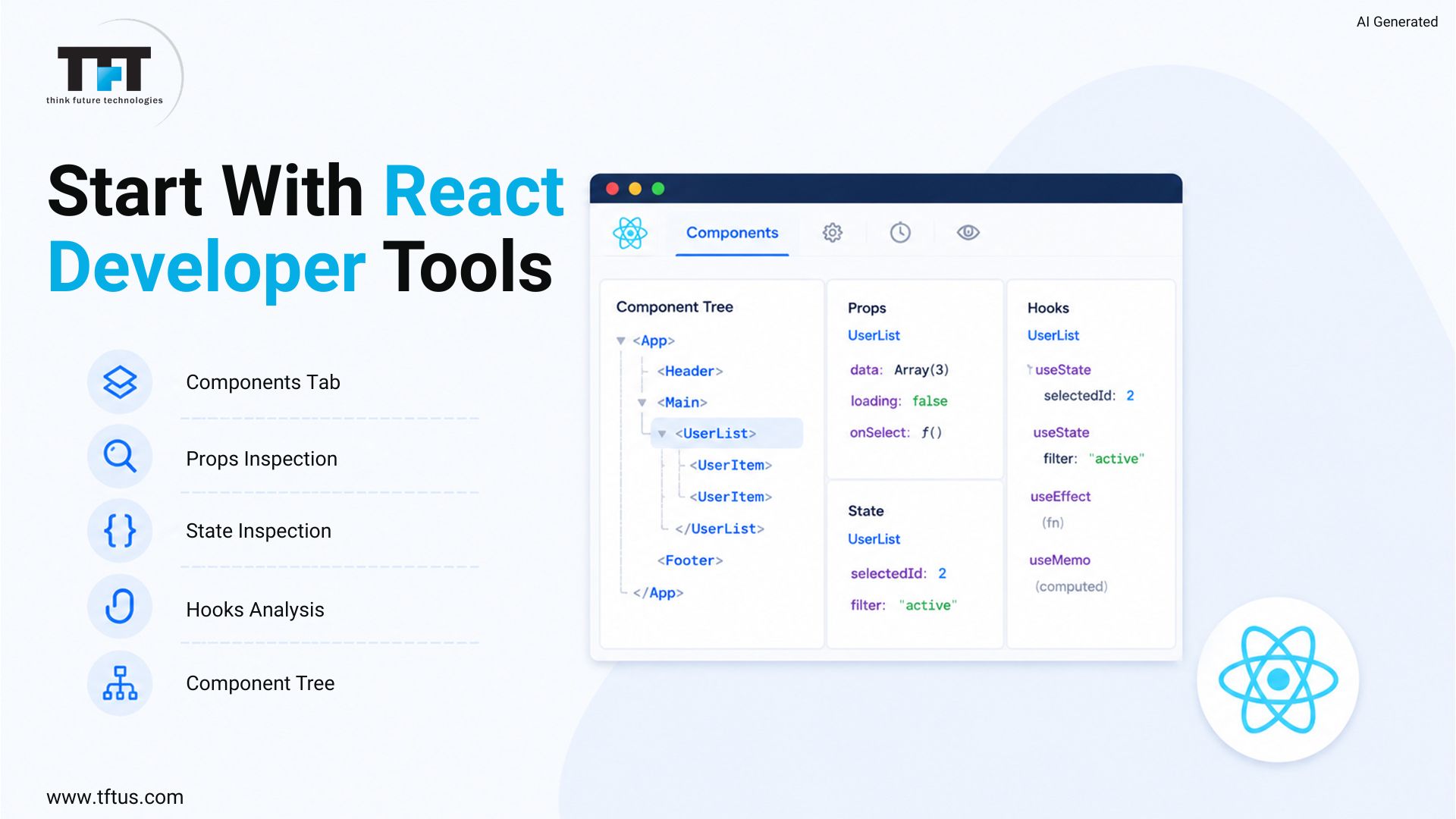
The Components tab displays all components rendered on your React page as a tree. Click on a component to view its props, state, and hooks on the right.
You can modify props and state in the panel, and see the component automatically update. It’s the quickest way to inspect what data is present within a component.
You can also search for a component name. This is a great debugging tool for large apps with hundreds of components.
Step 3: Breakpoints in Chrome DevTools
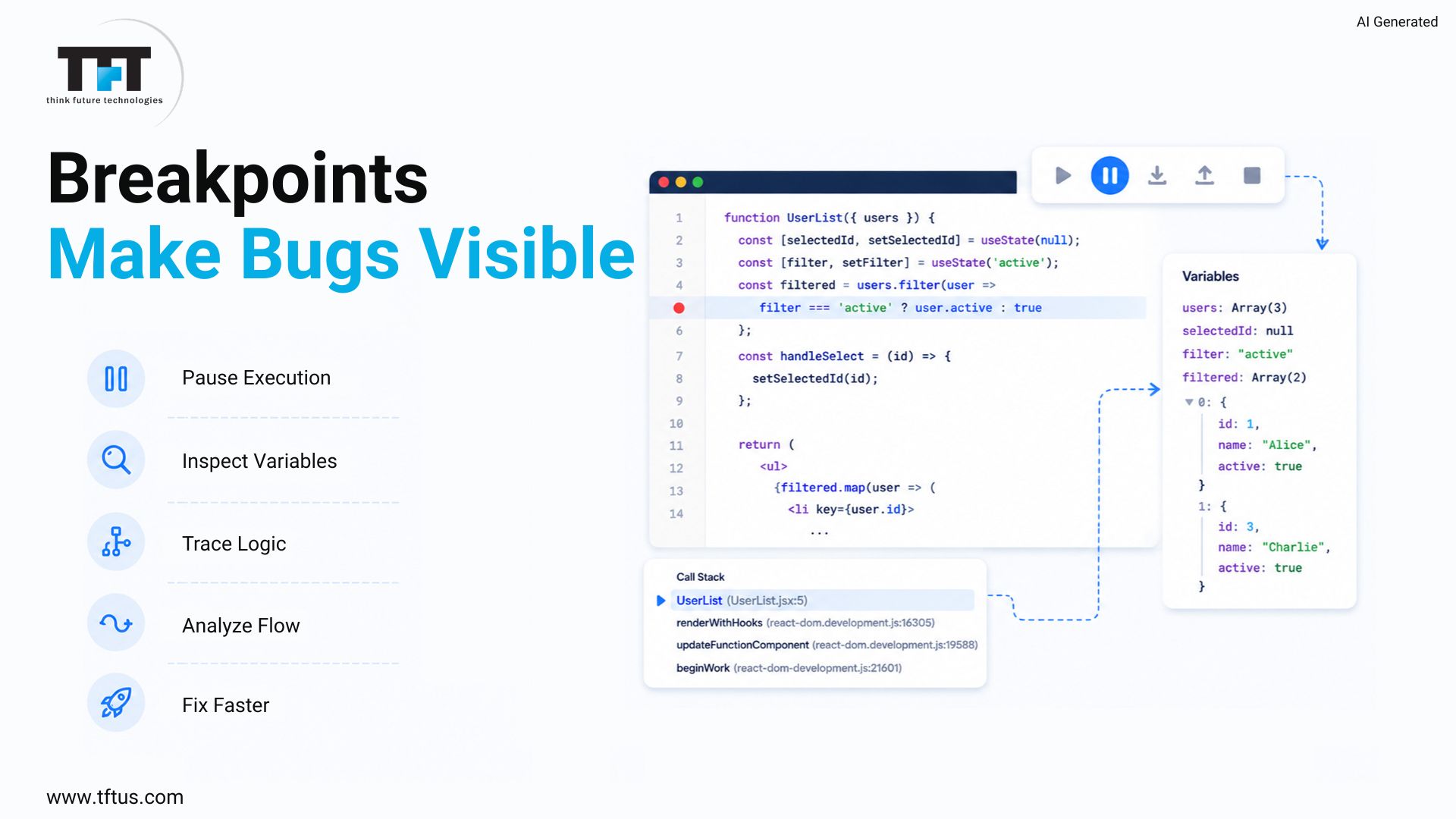
A breakpoint is a line where the code execution pauses. In the Sources tab of Chrome DevTools, find your file in the tree on the left and click the line number you want to pause.
A blue dot appears on the line. The code will pause there on the next run, and you will see all of the variable’s values in scope.
Source maps are important here. They’re automatically generated by a Create React App project when you’re in development mode, and allow DevTools to show the correct source file, not the bundled file.
Listen: Mastering Browser Debugging Techniques
This episode explores practical debugging workflows using Chrome DevTools, including breakpoints, call stacks, variable inspection, and browser-based troubleshooting techniques that apply directly to React applications.
Step 4: Use the Debugger Statement
The debugger statement is similar to a breakpoint. Just insert it in your code, and the browser halts on the line where the statement is when DevTools is open.
function calculateTotal(items) {
debugger;
return items.reduce((sum, item) => sum + item.price, 0);
}
This might come in handy if the file is difficult to navigate to in the sources tree or if the code is not visible in a callback or in an async function. Don’t forget to remove the debugger statement before production. It will hang the browser for all users with DevTools open.
Step 5: Set Up VS Code Debugging
VS Code also includes a debugger so you can place breakpoints in your source code without switching windows.
-
- Create a Launch Configuration
Go to the debug panel by pressing Ctrl+Shift+D. Select “create a launch.json file” and choose Chrome. Change the URL to your app’s port:
{

 "type": "chrome",

 "request": "launch",

 "name": "Launch Chrome",

 "url": "http://localhost:3000",

 "webRoot": "${workspaceFolder}/src"

}-
- Start the Debugger
Start your app with npm start and press F5 in VS Code. VS Code opens Chrome and connects the debugger.
Click on the line numbers in VS Code to create breakpoints. When the code reaches the line, execution pauses, and the left panel displays the values of all variables.
-
- Use the Debug Toolbar
When the debugger is attached, a toolbar is displayed at the top of the window. It gives you control to continue, step over, step into, step out, and stop.
Step 6: Read the Call Stack
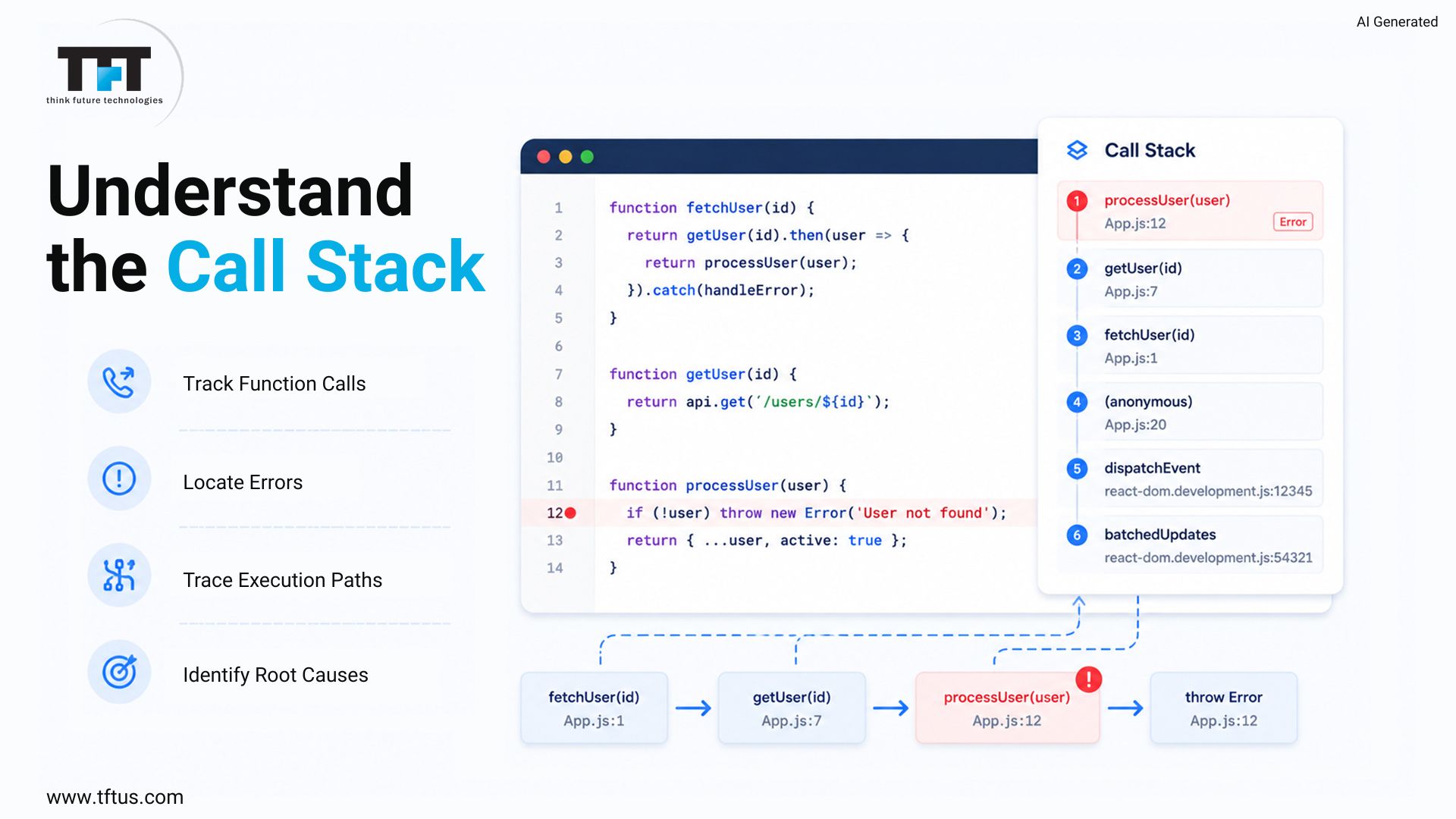
The call stack is a list of the function calls that have brought you to the current line. When there’s an error, it shows you where it occurred and how that code reached that point.
Read from the top down. The first line that’s not part of React is likely the culprit. By default, the tools hide the stacks from React’s internals, but you can turn them on in the Sources panel.
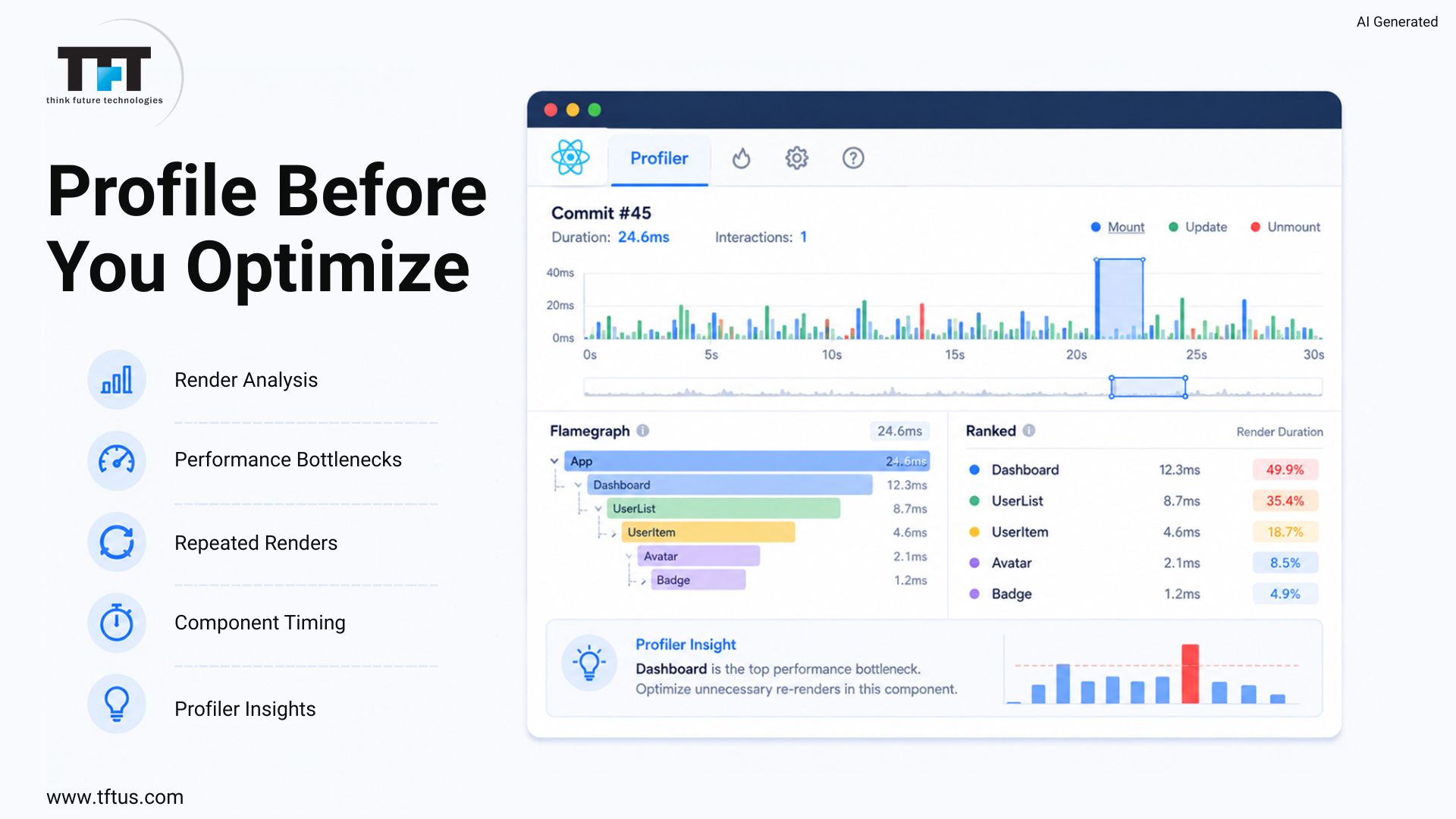
Step 7: Profiler Tab for Performance
The Profiler tab shows you what’s rendered and how many times each component renders. Load React DevTools, and click the Profiler tab and the blue circle.
Click on the slow part of your app, and stop. The flame chart shows all the components rendered and how long each took.
The biggest bars and the repeat bars are the first to investigate. The Profiler also tells you why each component was rendered, such as a prop change, state change, or context change.
According to 2026 React performance guidance, Core Web Vitals measurement is recommended as the starting baseline for React performance debugging initiatives, helping teams identify rendering and responsiveness issues before optimization begins.
Breakpoints vs Debugger Statement: Which to Use
Both stop the code, but for different purposes.
Use breakpoints if you can find the file easily and need a quick pause that doesn’t affect the code. Breakpoints are lost when the browser closes.
Use a debugger statement when the code is deeply nested in a callback or a promise chain, or in a module that is difficult to navigate. It’s also useful to check into the codebase for a reproducible pause point to share with a colleague.
How to Debug Wrong Render Output?
If a component renders the wrong information, do these two things before you start searching for bugs.
Step 1: Check the data
Inspect the component’s props and state using React Developer Tools. If the data is wrong, the problem is in the data. Look further up the tree.
Step 2: Check the logic
If the input data is good but the output is bad, then the bug is somewhere in the component’s logic.
Case Study: Using Structured Debugging to Resolve Production Issues
A property management platform experienced login connection errors, session handling problems, and limited visibility into application failures.
By implementing structured error logging, systematic debugging workflows, and improved session management, the team successfully resolved authentication issues and improved error visibility across the React application.
This highlights how organized debugging practices can accelerate issue resolution and improve production stability.
(Source: Bacancy Technology Case Study)
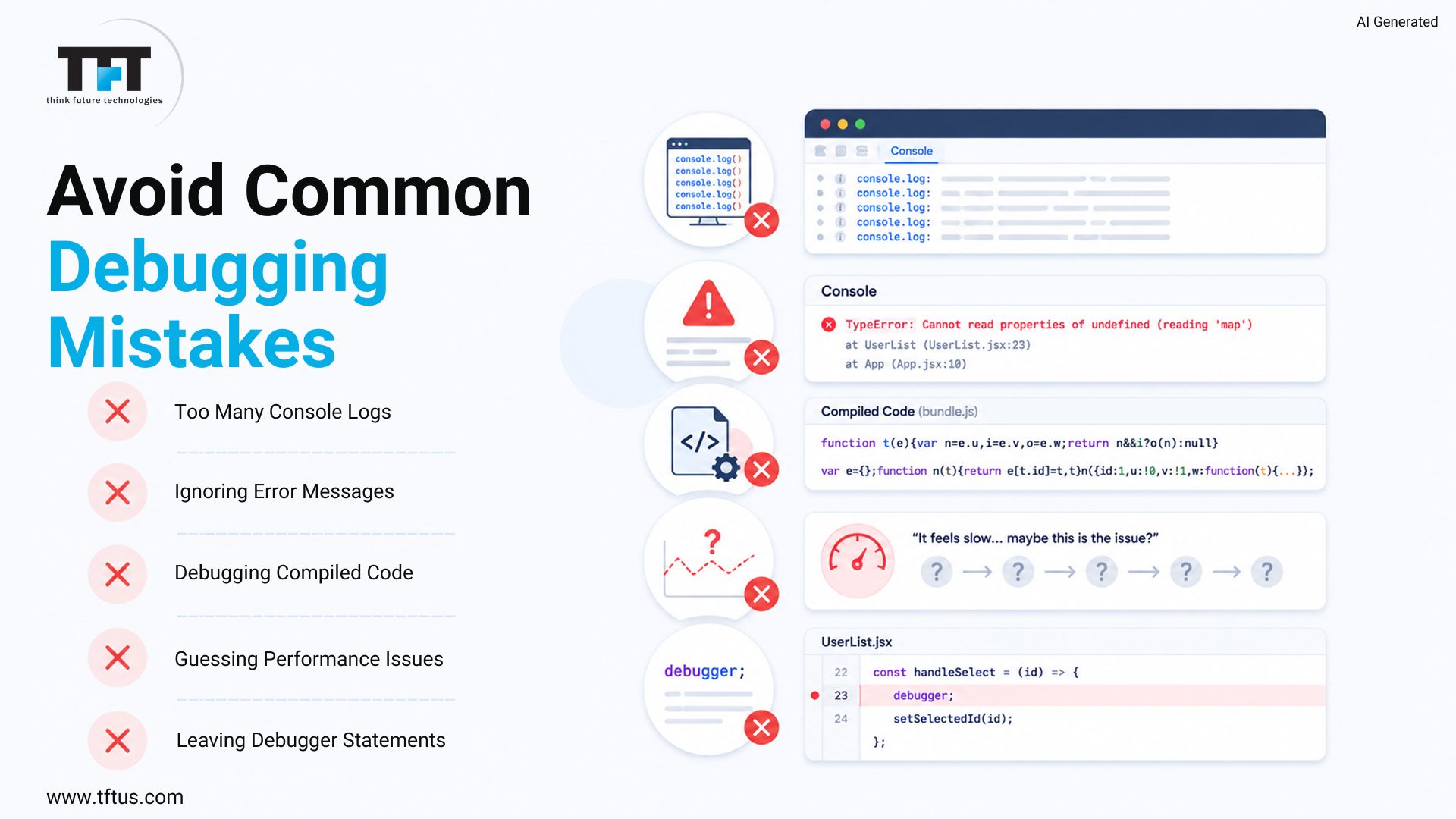
5 Common Debugging Mistakes to Avoid
1. Relying Only on console.log
Logging is useful for spot-checking, but it will quickly clutter your codebase. Use breakpoints and only logging for a quick check.
2. Skipping the Full Error Message
The error messages that you see in dev mode are informative and generally tell you exactly what the problem is. Don’t skip the rest of the message.
3. Setting Breakpoints in Compiled Code
Without source maps, a breakpoint will be set in minified code. Be sure you are in the source file when you set a breakpoint.
4. Guessing at Performance Problems
Don’t look at the code and guess what is slow. Click on the Profiler tab, and record the slow interaction to see where the time was spent.
Industry recommendations for React performance debugging suggest running 4–8 week pilot measurements on a small number of components before broader optimization efforts, ensuring performance improvements are based on real profiling data rather than assumptions.
5. Leaving Debugger Statements in Production
Forgetting to remove a debugger statement prevents all users with DevTools open from continuing. Use a search (Find/Replace) for “debugger” before committing to production.
Quick Reference: Debugging Tools for React
| Tool | What It Does | When to Reach For It |
| React Developer Tools | Inspect component tree, props, state, hooks | Any time a component renders wrong data |
| Chrome DevTools Sources | Set breakpoints, step through code, read call stack | Logic errors and unexpected code paths |
| VS Code Debugger | Debug inside your editor with breakpoints | Preferred workflow for developers who live in vs code |
| Profiler Tab | Measure render times and identify slow components | Performance issues and unnecessary re-renders |
| Redux DevTools | Time-travel through state changes | State management bugs in Redux apps |
| Why Did You Render | Identify unnecessary component re-renders | Performance optimization |
| Sentry | Capture and alert on production errors | Any production react application |
| ESLint | Catch errors before the code runs | Prevents many bugs during development |
Conclusion
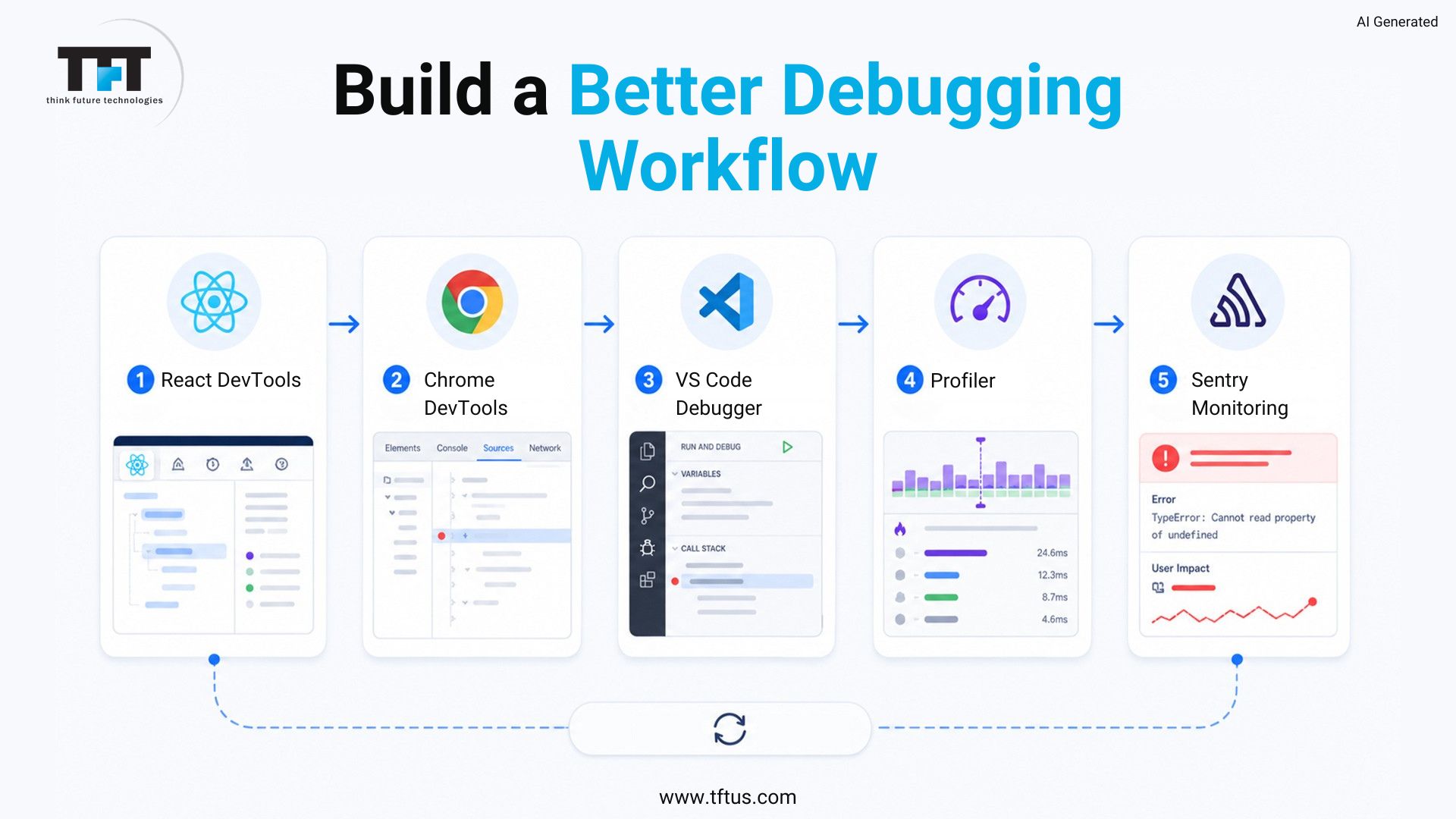
The key to good debugging is to use the right tool at the right time. React Developer Tools handles component data. Chrome DevTools and VS Code handle logic errors. The Profiler tab handles slow renders. Sentry handles production issues. Use the right tool, and your debugging time will decrease.

Leave a Reply